
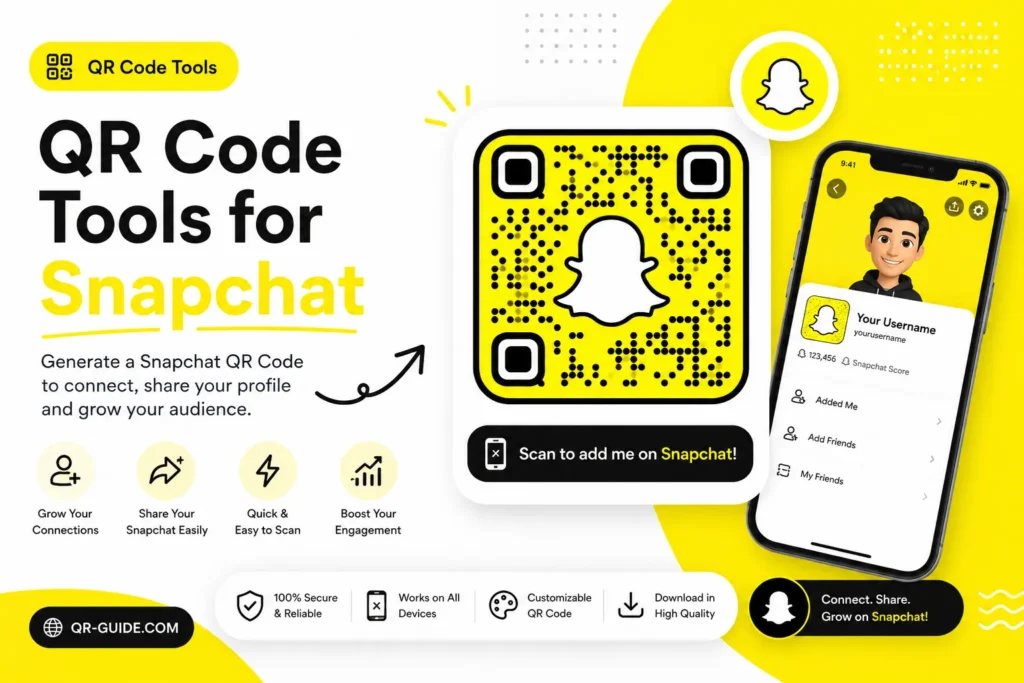
This page is the dedicated guide for Snapchat QR codes inside the ShoutingNow QR Code Guide hub. It sits under Social Media QR Codes and links to the live Snapchat QR Code Generator route. Use this page to understand the payload, then create the file on the tool.
What a Snapchat QR code is
A Snapchat QR code stores the text or URL your phone needs for that action. When someone scans it, the camera app (or a QR reader) opens the destination without typing. On ShoutingNow the code is static: the payload is baked into the PNG or SVG you download. That is perfect when the destination is stable, or when you point the code at a short link you can edit later.
Build a Snapchat QR code from a profile URL or username so scanners can add you on Snapchat quickly.
Why this type creates value
The square is not the product. The completed action is. A clean Snapchat code removes friction between a printed moment and the digital step you want next. People are already willing to point a camera at a poster, badge, menu, or package. Your job is to make the first scan succeed and land in the right place.
This matters for teams that cannot afford failed handoffs: staff repeating passwords, customers mistyping URLs, students losing form links, or guests abandoning a payment flow. A well-made code is a quiet interface that does one job well.
How to create a Snapchat QR code on ShoutingNow
- Open the Snapchat generator route (or pick the capsule on the QR hub).
- Fill the fields for this type. For file types, upload to Drive or Dropbox so the tool can create a share link first.
- Customize colors or a logo if you need branded print. Keep logos small and raise error correction.
- Download PNG for screens or SVG for Illustrator and InDesign.
- Scan on iPhone and Android before you print a batch.
If the destination might change, encode a URL you control. Static codes do not rewrite themselves after print.
Use cases
- Print the code where people already look with their phone camera.
- Keep the destination short and stable.
- Scan a test on iPhone and Android before you print a batch.
Setup tips that keep scans reliable
Keep payloads short. Prefer clean profile or share URLs over long tracking strings. Leave quiet space around the code. Use dark modules on a light background. Size the code for the real viewing distance, not for how it looks on your laptop. If you embed a logo, use higher error correction and keep the logo under about one fifth of the code area.
For PDFs, Excel files, images, audio, and video, never try to store the whole file inside the QR pattern. Host the file, share it, encode the link. Confirm sharing still works a week later before you print thousands of units.
Print and design workflow
Export SVG when the code will live in a press layout. Export PNG when you only need slides, email, or social posts. Test a paper proof under the lighting of the venue or store. If the code fails, fix size or contrast before you change the payload.
Mass or bulk style workflows still work one payload at a time on this hub. Keep design settings consistent, generate each destination carefully, and store the files with clear names so reprints are easy.
How this page links the hub
Parent pillar: QR Code Guide. Group guide: Social Media QR Codes. Live tool: Snapchat QR Code Generator. Related type guides:
- WhatsApp guide – open tool
- YouTube guide – open tool
- Facebook guide – open tool
- Instagram guide – open tool
- Telegram guide – open tool
- TikTok guide – open tool
Before you publish
Ask whether a stranger with an average phone would succeed on the first try. If yes, download and place the code. If not, adjust size, contrast, or destination. Then keep this type guide bookmarked for the next campaign that needs the same payload.
Field notes for Snapchat campaigns
Write the call to action in plain English next to the code. One short line is enough: Scan to open, Scan to join, Scan to pay, or Scan to save contact. Do not crowd the quiet zone with other graphics. If you place several codes on one page, leave clear space between them so cameras do not grab the wrong square.
When you hand this off to a designer, send both links: this type guide for context and the live generator for the file. When you hand it off to a printer, send a scanned proof photo from a real phone, not only a laptop screenshot. That habit catches contrast and size problems early.
If your team later needs a different QR family, jump to the Social Media QR Codes group page or the main QR Code Guide. The hub structure is intentional: one pillar, group pages for comparison, type pages for depth, and one generator for production.
Search phrases like Facebook QR code generator, Wi-Fi QR code generator, free PDF QR code generator, or how to generate a QR code for a Google Form all map into this same system. Use the matching type page and tool route instead of creating a second disconnected guide root.
Return to the Social Media QR Codes page when you need another type in the same family, or to the main QR Code Guide when you need the full pillar explanation of value, print rules, and hub structure. The generator remains free, browser-based, and connected to every guide in this cluster so teaching pages and tool pages stay aligned.
When you share this guide with a teammate, send the type guide URL for education and the tool URL for production. That split keeps writing clear and keeps the interactive work where it belongs.