
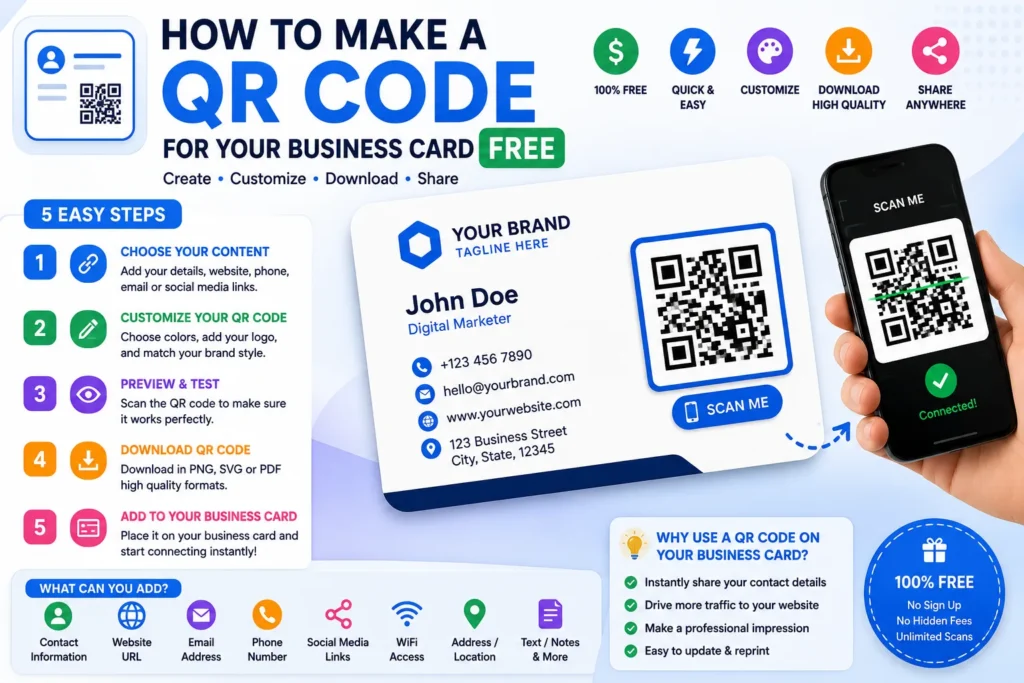
A QR code (Quick Response code) is a two-dimensional barcode that stores text, usually a URL, in a pattern of black and white squares. Anyone with a smartphone camera can scan it to open a website, join Wi-Fi, save a contact, or read a message. This guide explains what QR codes are, how to create them correctly, and when to use each content type. When you are ready, open our free QR Code Generator to build, customize, and download print-ready codes in your browser.
Ready to build? Open the QR Code Generator, URL, Wi-Fi, vCard, email, maps, logos, frames, PNG/SVG export. No signup.
What is a QR code?
QR codes encode data as a grid of modules (dots). Scanners read three large corner squares to orient the image, then decode the payload using Reed-Solomon error correction, the same family of math used on CDs and DVDs. A single static code can hold roughly:
- ~4,300 alphanumeric characters at low error correction
- ~2,900 bytes of binary or UTF-8 text in practice
- A short URL is ideal, long payloads create dense patterns that are harder to scan
Modern phone cameras decode most codes without a dedicated app. For marketing, the code is simply a bridge from print or packaging to a digital action.
How to create a QR code (5 steps)
- Choose your content type, URL for websites, Wi-Fi for guest networks, vCard for business cards, geo for locations.
- Enter accurate data, double-check URLs (https), Wi-Fi passwords (case-sensitive), and phone numbers.
- Customize for scan reliability, high contrast, adequate quiet zone (margin), and High (H) error correction if you add a logo.
- Preview and test, scan with iOS and Android before printing hundreds of copies.
- Download and deploy, use PNG for slides and social, SVG for designers, at least 2 cm / 0.8 in print size.
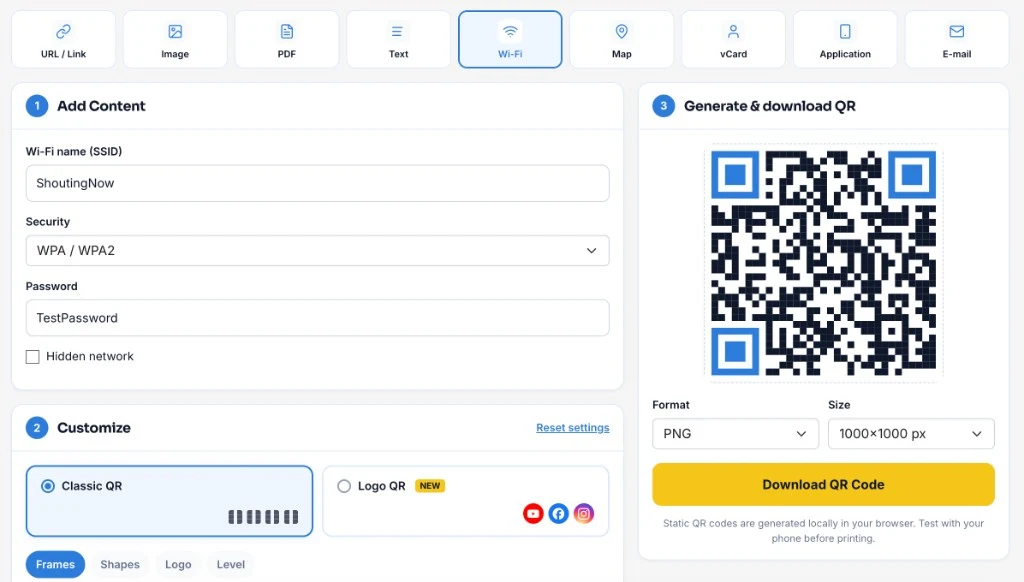
Our QR Code Generator follows this workflow: Step 1 Add Content → Step 2 Customize → Step 3 Download. The screenshot below shows a Wi-Fi example, the same layout works for URLs, contacts, email, and maps.
QR payload formulas by type
Static QR codes store literal strings. These are the standard formats our generator encodes:
URL / website link
Payload: full URL with scheme, e.g. https://shoutingnow.com/tools/qr-code-generator/
If you omit https://, we add it automatically. Always test the link in a browser first.
Wi-Fi network
Select Wi-Fi in the generator, then enter your network name (SSID), security type, and password. The preview updates as you type so you can confirm the code before printing guest-room signs or office posters.
Payload format (WIFI):
WIFI:T:WPA;S:NetworkName;P:YourPassword;H:false;;T = security (WPA, WEP, or nopass), S = SSID, P = password, H = hidden (true/false). Special characters in SSID or password must be escaped with backslashes.
Email (mailto)
Payload: mailto:[email protected]?subject=Hello&body=Message
Scanning opens the default mail app with fields pre-filled.
vCard contact
Payload: VCARD 3.0 block ending with END:VCARD. Scanning prompts to save a contact, perfect for business cards and conference badges.
Geographic location
Payload: geo:latitude,longitude, e.g. geo:40.7128,-74.0060 for New York City. Alternatively encode a Google Maps URL if you need a branded map page.
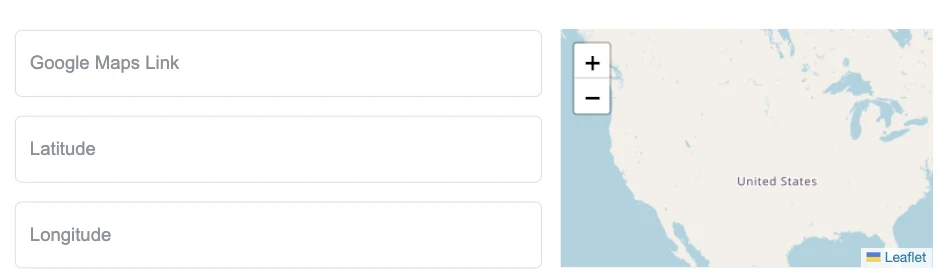
In the Map tab you can paste a Google Maps link, type coordinates, or click the map to drop a pin, all three fields stay in sync.
Plain text
Payload: any UTF-8 string, promo codes, instructions, or serial numbers. Keep text short for reliable scanning.
Use cases
| Scenario | QR type | Why it works |
|---|---|---|
| Business card | vCard or URL | One scan saves your phone, email, and website |
| Restaurant menu | URL to hosted PDF or menu page | Update the page without reprinting if you control the URL |
| Retail packaging | URL + Logo QR | Brand recognition with styled dots and center logo |
| Office / Airbnb Wi-Fi | Wi-Fi | Guests join without typing long passwords |
| Event check-in | URL or text ticket ID | Fast validation at the door |
| App install campaign | App Store / Play links | Point to store listing or smart landing page |
| Real estate sign | Map / geo | Opens directions to the property |
| Feedback / support | Email mailto | Pre-filled subject lines improve response rates |
Design and print best practices
- Contrast: dark modules on a light background scan best. Avoid yellow-on-white or low-contrast pastels.
- Quiet zone: leave empty margin around the code, at least 4 modules wide.
- Minimum size: print at least 2 × 2 cm (0.8 × 0.8 in); larger for distance scanning (posters, billboards).
- Logo overlay: keep logos under ~20% of the code area and use High (H) error correction.
- Test distance: scan from the distance your audience will use, arm’s length for cards, several meters for posters.
Common mistakes and solutions
| Mistake | Problem | Solution |
|---|---|---|
| Link goes to HTTP error page | 404 or redirect loop | Verify URL in browser; use https and trailing paths exactly as published |
| Code too small or blurry | Camera cannot resolve modules | Export at 1000 px+; print vector SVG when possible |
| Low contrast colors | Scanner fails in dim light | Use dark blue/black dots on white; avoid inverted light-on-dark for print |
| Huge logo covering pattern | Unreadable code | Shrink logo; switch error correction to High (H) |
| Wi-Fi password changed | Old code stops working | Static codes cannot update, print new codes after password changes |
| Embedding large PDFs directly | Exceeds QR capacity | Host PDF online; encode the short public URL instead |
| Skipping real-device test | Works on one phone only | Test iOS Camera, Android Camera, and one third-party scanner |
Static vs dynamic QR codes
Static codes (what our free generator creates) embed the final destination in the image. They never expire, require no account, and work offline forever, as long as the destination remains valid.
Dynamic codes point to a redirect URL a service controls, so you can change the destination after printing. That requires a hosted platform and often analytics subscriptions. For most small businesses, a static code pointing to a page you own (yoursite.com/menu) is simpler and free.
Create your QR code now
Use the ShoutingNow QR Code Generator to pick a type, add your logo, choose ShoutingNow blue and yellow styling, and download PNG or SVG. Bookmark this how to create a QR code guide for sizing formulas, print contrast tips, and common mistakes, then share the tool with your team for unlimited scans with no paywall.