
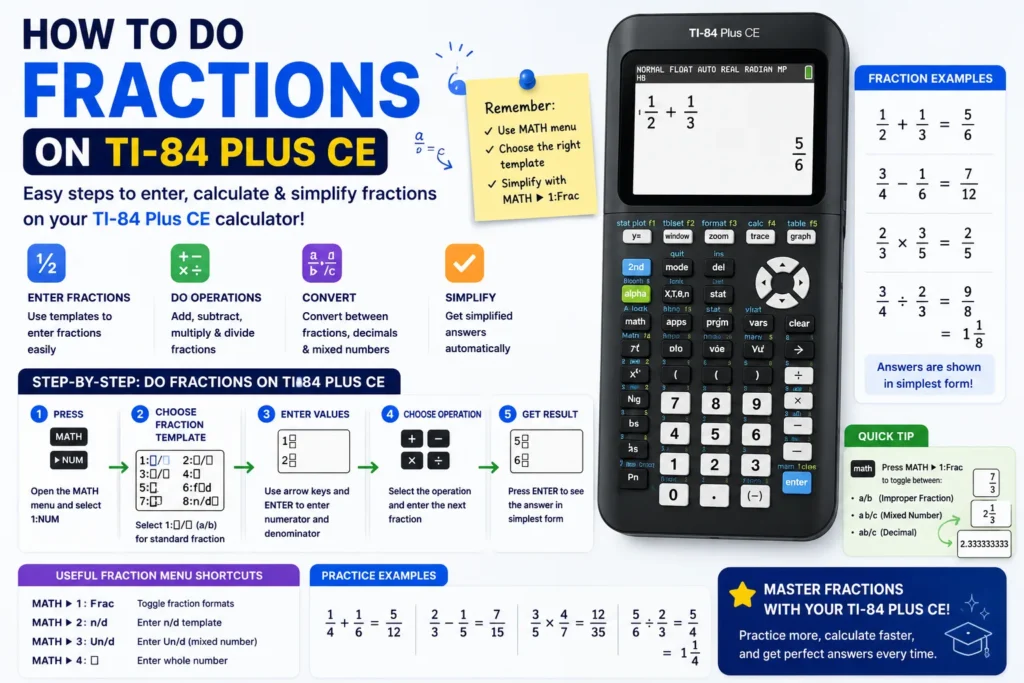
Learning how to do fractions on TI-84 Plus CE models is faster with MathPrint. This tutorial covers how to enter a fraction on a TI-84 Plus, how to convert a decimal to a fraction on a TI-84 Plus CE, and how to multiply fractions on TI 84 Plus CE and divide them — plus how the TI-83 Plus differs and what to do without a fraction button on basic calculators.
Watch: How to do fractions on TI-84 Plus CE
Practice on the TI-84 Plus CE calculator online or verify homework with our percentage calculator.
Fraction template key (MathPrint)
Press the fraction template key (above PRGM on most CE layouts). Type numerator, press ↓, type denominator, press ENTER. The calculator displays stacked fractions like textbook notation.
Mixed numbers and improper fractions
Use the mixed-number template if your OS provides it, or type 1+3/4 with parentheses when needed. The CE simplifies many results automatically.
Convert a decimal to a fraction
- Evaluate the decimal on the home screen (example:
0.375). - Press MATH → ▶Frac.
- Press ENTER to see
3/8.
On SAT problems, ▶Frac often matches multiple-choice rationals faster than hand simplification.
Multiply and divide fractions
Type using templates or parentheses: (2/3)*(5/7) and (2/3)/(5/7). Always use parentheses around multi-term numerators so the calculator parses order correctly.
Fractions after graphing
From CALC results, move to a decimal coordinate and press ▶Frac. Pair with the graphing equations tutorial for intersect workflows.
TI-83 Plus differences
The TI-83 Plus uses a similar ▶Frac command but lacks the color MathPrint layout. Keystrokes transfer with minor menu differences — students upgrading to the CE keep the same habits.
Without a fraction button
On phones or four-function apps without a fraction key, enter division explicitly (3/4) or use decimal form. The TI-84 CE is worth carrying precisely because templates and ▶Frac reduce transcription errors.
SAT tip
Memorize MATH → ▶Frac alongside graph intersect — both appear in the TI-84 SAT section.
Related TI-84 Plus CE resources
- TI-84 Plus CE complete guide — stats, SAT, troubleshooting
- TI-84 Plus CE Online Calculator — practice in your browser
- Write & transfer notes — NoteFolio & TI Connect CE
- Graphing equations — Y=, solver, vertical lines
- Clear memory — history, lists, graph DB
- Reset tutorial — RAM, factory, exam prep
- Charging guide — cable, indicators, battery
- Slope Calculator — verify linear equations