
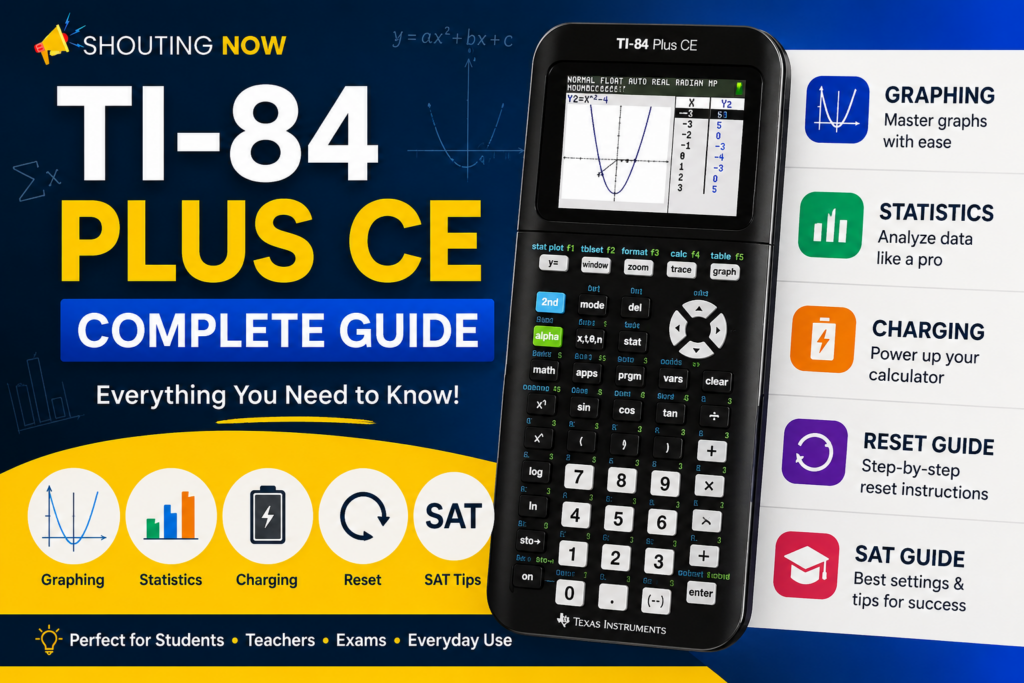
The TI-84 Plus CE is the graphing calculator most US high schools standardize on. It handles algebra through AP Statistics and AP Calculus without the learning curve of a computer algebra system. This guide covers graphing, statistics, SAT strategies, how to charge the battery, how to reset for exams, and where to practice free online when you do not have the hardware in your bag.
Try it free: Open the TI-84 Plus CE calculator online — full keypad, runs in your browser, no download required.
What makes the TI-84 Plus CE different
The CE replaces the older monochrome TI-84 Plus with a backlit color screen, rechargeable battery, and slimmer body. Under the hood it is still a TI-84: same Y= graphing workflow, same STAT menus, same exam approval on most standardized tests. Teachers love it because classroom materials transfer directly from older models.
- Color graphing — plot multiple functions with distinct colors
- MathPrint — fractions and radicals look like textbook notation
- Built-in apps — Cabri Jr., Polynomial Root Finder, conic graphing, and more
- USB & link port — transfer programs and data to classmates or a teacher
Getting started: home screen essentials
Press ON. The status bar shows angle mode (Degree/Radian), number format, and battery level. The blinking cursor on the main line accepts expressions. Type 2+2 and press ENTER — the answer appears on the next line and the cursor drops down, building a scrollable history.
Keys you will use every day
- 2nd and ALPHA — yellow and green shift layers for menus and letters
- MATH — fractions, nth roots, logs, and calculus operations
- X,T,θ,n — the variable x in functions and graphs
- CLEAR — wipe the current line; MODE — change radians/degrees and display settings
- QUIT (2nd + MODE) — escape nested menus
For a full keypad walkthrough with screenshots-level detail, see our TI-84 Plus CE manual from beginner to expert.
How to graph functions on the TI-84 Plus CE
Graphing follows a repeatable four-step workflow:
- Press Y= and enter a function such as
Y1=X^2-4 - Press WINDOW or ZOOM → 6:ZStandard to set a friendly viewing rectangle
- Press GRAPH
- Press TRACE or 2nd → TRACE → zero/intersect to find key points
Common window mistakes — seeing a blank graph — usually mean your Xmin/Xmax/Ymin/Ymax do not match the function’s scale. Use ZOOM → ZoomFit after entering the function if you are unsure.
Example: parabola and line intersection
Set Y1=X^2-4 and Y2=2X+1. Graph, then 2nd → TRACE → 5:intersect. Move the cursor near the crossing point, press ENTER three times. The calculator reports the intersection coordinates — faster than solving a system by hand on homework.
Statistics: lists, mean, and standard deviation
Most stats homework uses 1-Var Stats on a list rather than typing formulas on the home screen.
- Press STAT → 1:Edit…
- Enter data in L1 (column headers appear when you scroll up)
- Press STAT → CALC → 1:1-Var Stats → 2nd → 1 for
L1→ ENTER
Read x̄ for the sample mean, Sx for sample standard deviation, and σx for population standard deviation. Know which one your teacher expects before test day.
TI-84 Plus CE on the SAT
The SAT allows most graphing calculators on paper-based administrations. The TI-84 Plus CE is explicitly permitted. You cannot use a browser-based emulator during the real exam — practice online at home, bring the physical calculator to the testing center.
SAT workflows worth memorizing
- Graph + intersect — solve systems visually under time pressure
- MATH → ▶Frac — convert a decimal answer to an exact fraction when the choices are rational
- Table (2nd → GRAPH) — scan integer inputs for pattern questions
- Reset RAM before test day if your teacher requires a clean memory state (see reset steps below)
How to charge the TI-84 Plus CE
The TI-84 Plus CE uses a built-in rechargeable battery. Under normal use you charge it with the included USB cable — no disposable batteries required.
Standard charging steps
- Plug the mini-USB end into the port on the bottom edge of the calculator
- Connect the other end to a computer USB port or a 5V USB power adapter
- Watch the status bar — a flashing battery icon means charging is active
- Allow about four hours for a full charge from empty
Battery status indicators
- Charging: flashing battery icon in the top-right status bar
- Fully charged: solid full battery icon (no flash)
- Low battery: empty or near-empty icon — charge before a long study session or test
How long a charge lasts
A full charge typically supports two to three weeks of normal homework use, about one week of heavy daily use, or one to two months on standby with the calculator powered off between sessions.
Battery care tips
- Charge when the battery falls below roughly 25%
- Avoid letting the battery drain completely on a regular basis
- Power off when you will not use the calculator for several days
- Store and charge at room temperature — avoid hot cars or direct sunlight while plugged in
- Use the original cable or a certified USB replacement rated for at least 500 mA output
Rechargeable cells wear out over time. If the battery no longer holds a charge after two to three years of use, replace it with an official Texas Instruments battery or contact TI customer support for service options.
TI-84 Plus CE not charging? Fix the “Validating OS” loop
On newer TI-84 Plus CE units, a stuck Validating OS screen can block charging. The calculator pauses charging until the operating system loads, but the validation loop never finishes — so the battery never fills even when the cable is connected.
Quick fixes to try first
- Hardware reset: use a pencil or paper clip to press the reset button on the back of the calculator. Hold for at least two seconds, release, then reconnect the charger
- Different power source: switch to another USB port or wall adapter that delivers at least 500 mA. A weak or failing adapter is a common cause
- Reseat the cable: unplug both ends, wait ten seconds, and plug back in firmly
If charging still fails
- Test the battery in another TI-84 Plus CE if a classmate or teacher can help — this isolates whether the battery or the calculator board is at fault
- Contact Texas Instruments customer support for warranty or repair guidance
- Replace the battery with an official TI part if support confirms the cell is dead
Do not open the calculator case unless you are comfortable with electronics repair. For most students, a hardware reset plus a known-good charger resolves the issue.
How to reset the TI-84 Plus CE
Reset options live in the memory menu. Choose the level that matches your goal — a light RAM clear for everyday troubleshooting, or a full memory wipe before a proctored exam.
Reset to factory defaults (clears RAM programs)
Use this when the calculator behaves oddly but you only need to clear variables, lists, and RAM-stored programs:
- Press 2nd
- Press + (the MEM key) to open the memory menu
- Scroll to 7:Reset… and press ENTER
- Select All RAM
- Choose Reset and confirm
Archived apps and programs stored in archive memory remain. Anything running from RAM — including student-written programs not archived — is erased.
Full reset for standardized tests
When a teacher or proctor requires a clean calculator with no stored notes, programs, or apps:
- Press 2nd → + (MEM)
- Select 7:Reset…
- Press → to move to the All tab
- Choose All Memory
- Press ENTER to confirm Reset
This removes programs, apps, lists, and stored variables. Reinstall any apps your class requires after the exam if needed.
Restore settings without deleting programs
When you only need factory mode settings (angle mode, number format) but want to keep programs:
- Press 2nd → + → 7:Reset…
- Select 2:Defaults → Reset
For a deeper walkthrough of memory management, see Level 5 in our TI-84 Plus CE manual from beginner to expert.
Common ERR:SYNTAX errors and quick fixes
ERR:SYNTAX means the calculator cannot parse what you typed. Check these first:
- Missing closing parenthesis — every
(needs a) - Using implicit multiplication incorrectly — type
(-2)^2not-2^2when you mean to square −2 - Comma vs decimal in lists — US models use commas to separate list elements
- Function name typos —
sin(notsn(
Press 1:Quit on the error screen, move the cursor to the caret (▶) position shown, and fix the expression.
TI-84 Plus CE vs TI-Nspire CX
The TI-84 Plus CE wins on familiarity, price, and classroom support. The TI-Nspire CX offers a document interface, computer algebra features on some models, and a mouse-style pad — powerful, but many teachers still teach to the TI-84 keypad. If your syllabus says “TI-84 or equivalent,” stay with the CE unless you are willing to self-teach the Nspire interface.
Programs and apps: what is worth installing
Popular student programs include quadratic formula solvers, distance/midpoint helpers, and Pascal’s triangle generators. Use PRGM → NEW to write your own, or transfer trusted files from your teacher. Avoid unknown downloads — corrupted assembly programs can require a full reset.
Practice without the hardware
Left your calculator at school? Our free TI-84 Plus CE online emulator runs in Chrome, Safari, Firefox, or Edge. Wait for the boot screen, use the zoom buttons if the keypad feels small on a phone, and work through the same Y= and STAT menus as the physical device.
TI-84 Plus CE resources on ShoutingNow
- TI-84 Plus CE Online Calculator — practice in your browser
- Complete TI-84 Plus CE Guide (Blog) — graphing, statistics, charging, reset & SAT prep
- TI-84 Plus CE Manual: Beginner to Expert — step-by-step reference guide